Showing posts with label design. Show all posts
The Biggest Design Sale Ever!
Jul 25, 2013

3 simple Photoshop tricks
Feb 17, 2013


How to Make Product Collages on Photoshop
Jan 20, 2013
Step 1. Open a new file. You can do this by hitting ctrl+n. I made my image 710x600 pixels, which is about the width of my post area.
Step 2. Find a product you'd like to feature in your collage. The first product I chose was from this shop. Be sure when you choose a photo, it should be a simple shape and easy to cut out. It works best if it's on a plain white background, too. Once you have your product, copy a photo of it and paste it into Photoshop.
Step 3. Zoom in a bit (magnifying glass icon) and take the eraser tool (pink eraser icon) and erase most of the background surrounding the item. Leave space for the smaller and detailed erasing.
Step 4. For more careful and precise erasing, I use the paintbrush tool. Set your main color to white then click on the little paintbrush icon near the top of the screen. This will pull up an options bar. Set the hardness to around 40% and then you can paint over the background slowly and carefully.
Step 5. Zoom back out and check your work. If it's still rough around the edges, you can zoom back in and clean it up.
Step 6. Once you've repeated steps 2-5, place your different images evenly. You can add a title to it, too.

(Super) Easy Clipping Mask Tutorial for Photoshop
Jan 18, 2013

Okay, do you want to know one of the easiest, handiest tricks you can do with Photoshop?
Clipping masks.
They take five seconds and are seriously so simple. I have Photoshop Elements 8 but you can use this tutorial for almost every version. If you are a Photoshop beginner, read on!
So you've seen graphics that are filled with some kind of pattern, right? If not, just scroll up a little bit and check out the elephants ;). Today you will learn how to fill any kind of shape/word with a photo or pattern.

Step 1. Start by making sure your layers bar is showing. If it isn't there, go the "window" tab near the top of your screen and click on "Layers".
Now open up a new file. You can do this by hitting ctrl+n and typing in the sizes. My image was 600x400 pixels.
Step 2. Type in any word you want by clicking on the little "T" in the tool bar. Be sure to choose a wide font so the photo will show through clearly.
Step 3. Click on the "file" tab and click "place".
Step 4. This will open up your image files. Choose a photo you want to insert into your image. Click "place".
Step 5. You just inserted your picture into your image as another layer. Be sure it overlaps your word. If it's behind it, you can rearrange it by dragging the picture box to a different spot in the layers panel.
Now here comes the magic... Press Ctrl+g.
Boom! Your photo just got "clipped" to the shape behind it.

You can drag the photo around inside the clipping mask so it will show through differently.

New Look
Jan 3, 2013
How To Cut Out Photos (a PSE tutorial for beginners)
Dec 22, 2012

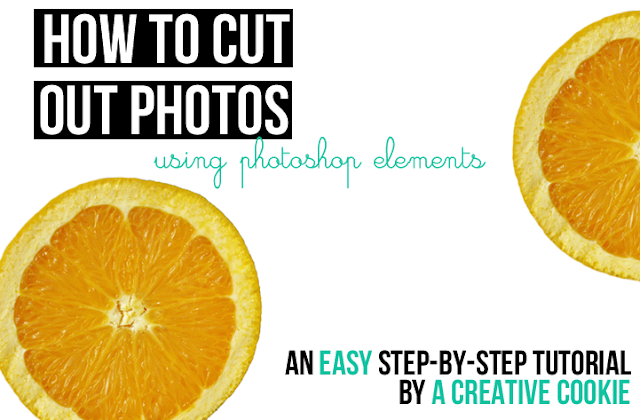
Lately I've been making "stickers" using Photoshop. Basically my "stickers" are made out of my drawings and cutout photos with transparent backgrounds so I can paste it onto any background (like the oranges in the image above).
Today I am going to show you how to cut out photos so you can make your own 'stickers'. It is pretty easy and can be done in about five minutes. I don't know if most people already know this, becuase it's pretty basic, but I'm just gonna say this is for Photoshop beginners.
The program I am using in this tutorial is Photoshop Elements 8, but I bet if you had CS or another version of PSE, this would still work fine because I use basic tools.
Start by opening your photo. I used one that contrasted very well (the blue and the orange) and was very easy to cut out (almost a perfect circle).
Start by using the Quick Selection Tool and drag it around your orange (or whatever shape you're cutting out). Once it is selected, hit delete.
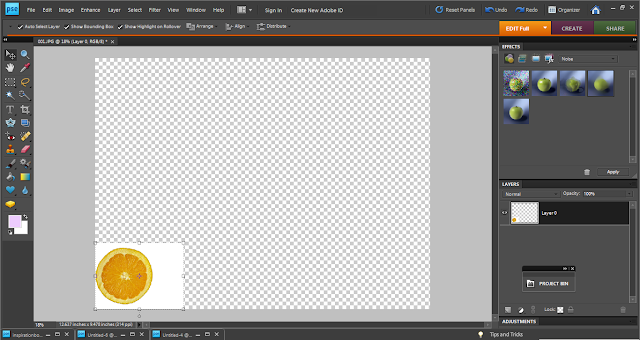
Our photo is still locked as a background, so we need to make it a layer, as shown above.

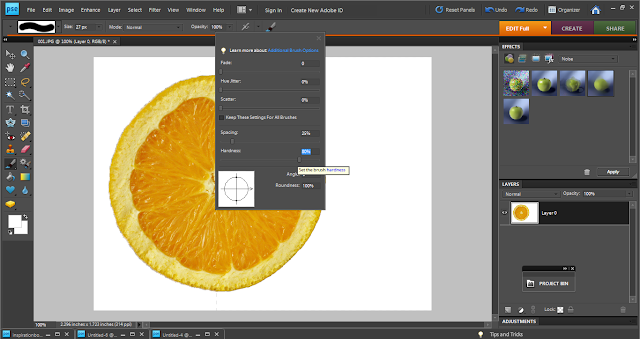
So now our photo is unlocked. But sometimes the Quick Selection Tool makes the photo's edges a little unclean, so take the brush tool and click on the brush icon in the editing bar. Lower the brush's Hardness so the edges are softer and look more natural when you clean up the edges.

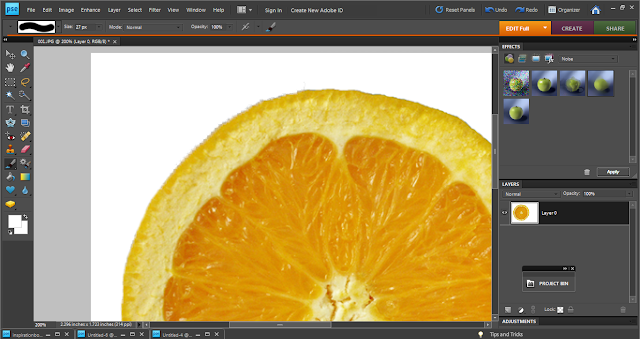
Zoom in a bit and paint over the messed up areas in white.

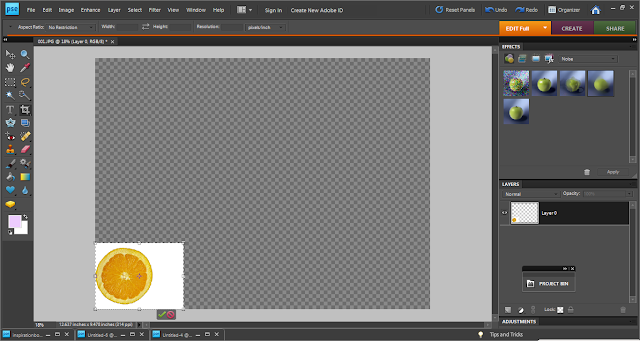
Camera files are usually really big so now we need to re-size the whole image...

...And crop it.
Now zoom in all the way so it's at 100% and select the Magic Eraser Tool by right clicking on the eraser icon and choosing it from the list that pops up. Use the tool on the white area and it will make it transparent.
You're almost done! Just crop the photo so there's not so much blank space and save it as a sticker.
Now you can get it onto any background by dragging it to the image.
Ta da!
Have any questions? Feel free to email me at
Subscribe to:
Posts (Atom)